Help & getting started
ProdCheck — User Manual
A kiosk-style production-floor tracker. One device per work area, signed in to your organization, with each worker tapping in by 4-digit PIN. This page is the same content as the GitHub manual; either is fine.
Introduction #
What is ProdCheck #
ProdCheck replaces the spreadsheet-on-a-clipboard workflow that supplement manufacturers run their floors on. A batch is created once, flows through a defined route of stages (Picking → Mixing → Filling → …), and every state change is recorded immutably. Workers see only the stages they're assigned to; managers see the whole floor; QC inspectors see what needs their gate; admins manage the org.
Concepts #
- Organization — the tenant. One email account owns it; multiple email accounts can be invited as members.
- Worker — a person who taps in via PIN. Has a role (Worker, QC inspector, Manager, Admin) and, for the Worker role, a list of stages they're assigned to.
- Product + MMR — what you're making and the recipe (Master Manufacturing Record). One MMR per batch.
- Batch — a single production run. Has units (size), delivery date, and spec values.
- Stage — a single step in the route. Each stage on a batch has a state (Pending → In Progress → Done, or Blocked / etc.).
- Template (route preset) — pre-built routes (Capsule, Tablet, Sachet, Softgel) with which stages need QC and which spec fields apply.
Roles at a glance #
| Role | Their main page | Can do |
|---|---|---|
| Worker | /queue | Start / Mark Done / Report Issue on assigned stages |
| QC inspector | /queue | Pass / Fail / Waive QC checks; upload photos |
| Manager | /manager/dashboard (overview), /queue (issue inbox) | Resolve blocked stages, edit batches, force-adjust stages, close batches |
| Admin | /admin/workers | Everything Manager does + create / edit / deactivate workers, edit templates, invite members |
Authentication #
Sign in #
Open the app and sign in with your organization's email + password.
New here? Click Register on the home page to create an org. The first worker created during sign-up is the Admin, with the PIN you choose.
Forgot your password?
Lock screen #
After signing in you land on the lock screen. Every active worker shows as a tile, color-coded by role. The org email stays signed in for the whole shift; individual workers tap a tile and type their PIN.
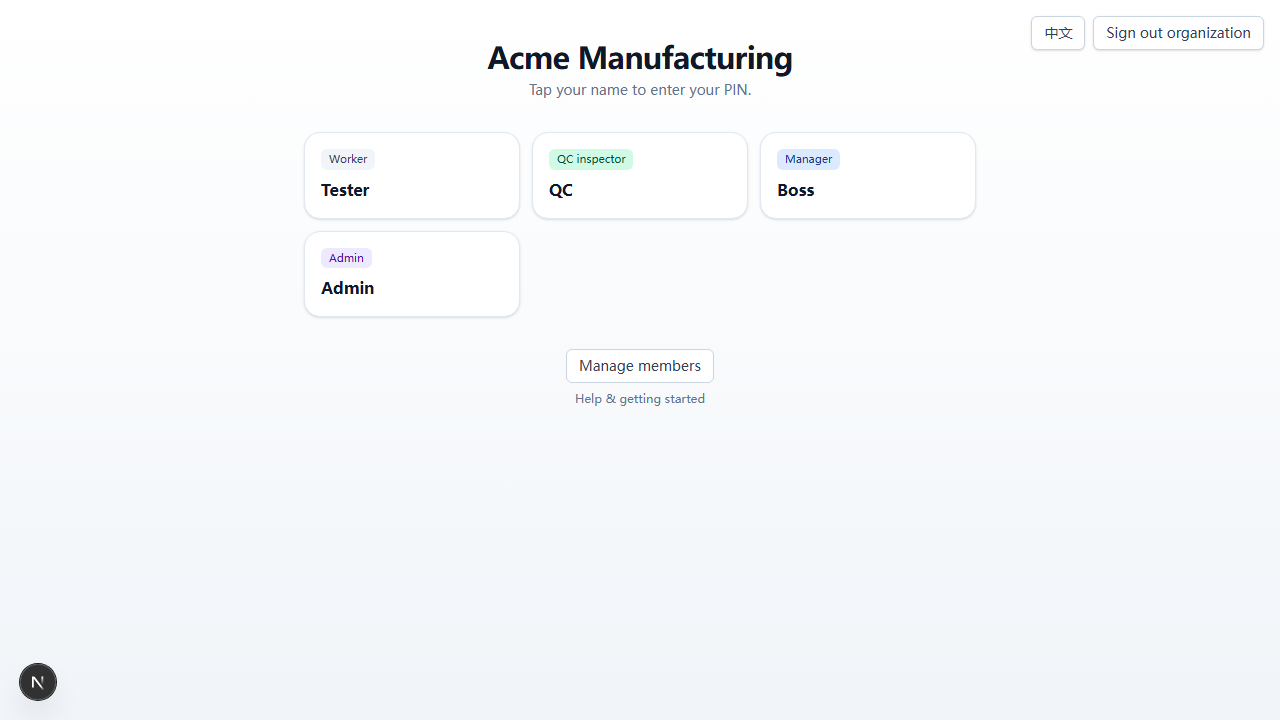
At the top of the lock screen there's a Sign out organization button. Below the tiles, Manage members opens the member list (admin only) and Help & getting started opens this manual.
PIN entry #
Tap your tile, type your 4-digit PIN. The form auto-submits when the fourth digit lands.
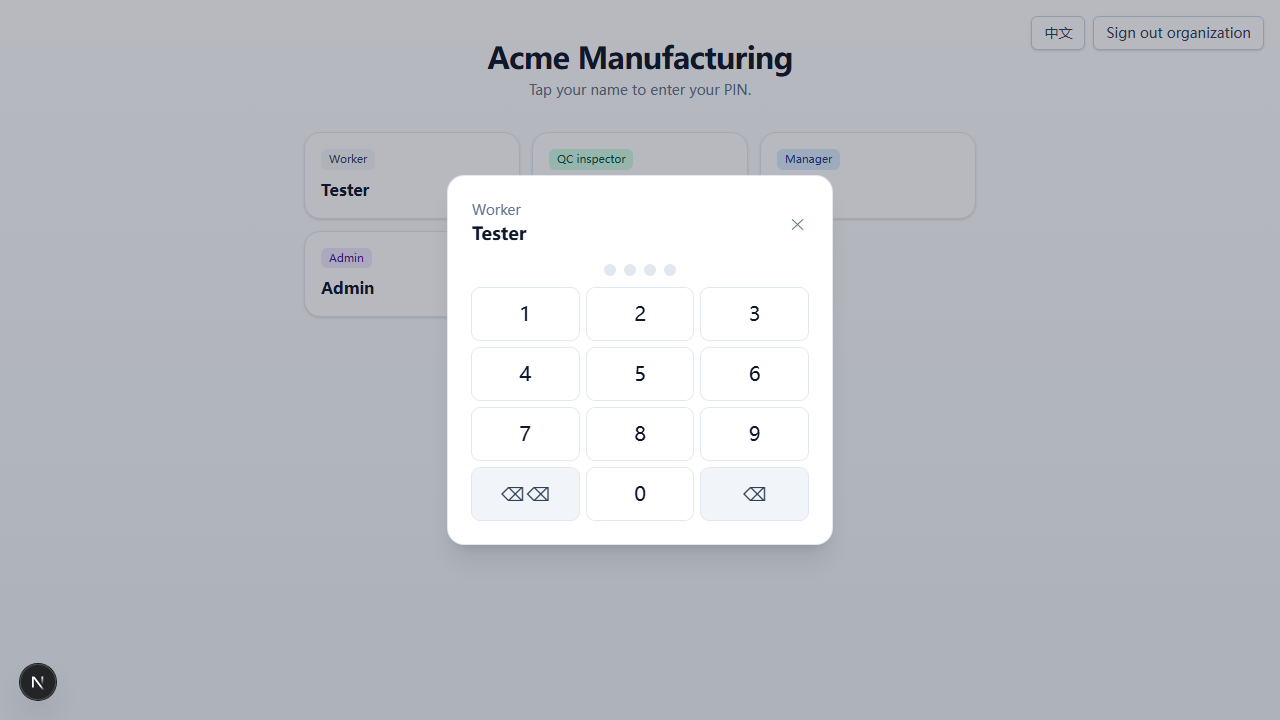
After successful PIN entry, you're routed to:
- Worker →
/queue - QC inspector →
/queue - Manager →
/manager/dashboard - Admin →
/admin/workers
Sign out #
The header has a Sign out dropdown with two options:
- Sign out user — drops the worker session, returns to the lock screen with the org still signed in. Use between workers.
- Sign out organization — full sign-out, returns to home. Use at end of shift.
Language toggle #
Top-right of every page toggles between EN and 中文. Setting persists per browser via cookie. The toggle reloads the current page so every server-rendered label flips on the spot.
See also: Introduction · Members
Worker — the floor #
My queue #
/queue shows the current stage of every batch the worker is assigned to, one card per batch. The worker can only see stages on their assignments list.
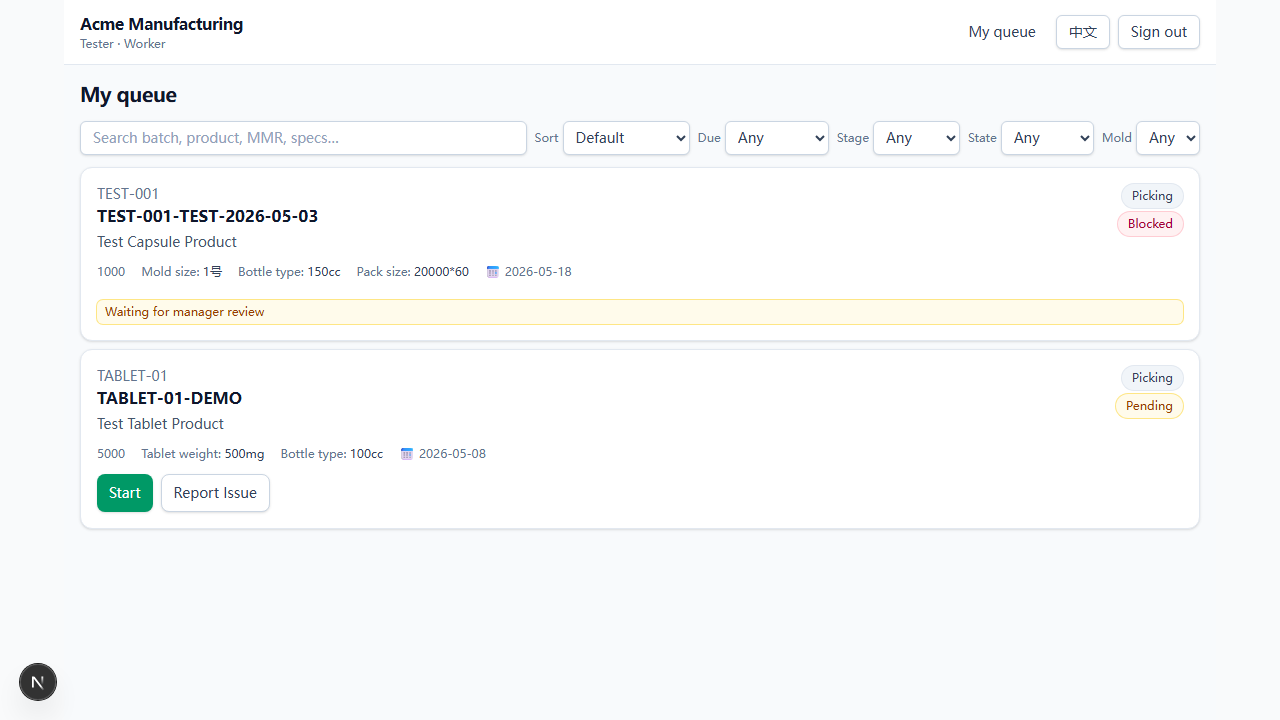
Each card surfaces:
- Product code, batch code, product name
- Stage badge + state badge
- Order size (units)
- Spec values (mold size, bottle type, pack size, etc. — depends on template)
- Delivery date (📅)
- Action buttons appropriate to the current state
State buttons #
The buttons depend on the card's current state:
| State | Buttons | Effect of primary action |
|---|---|---|
| Pending | Start, Report Issue | Start → In Progress (records started_at) |
| In Progress | Mark Done, Report Issue | Mark Done → terminal (Done or Ready) |
| Blocked | (none) | Banner reads "Waiting for manager review". Manager must Resolve. |
| Material Waiting / Material Missing / Coding | Start, Report Issue | Start → In Progress (resumes work) |
Why the floor can't self-recover from Blocked
Report Issue #
If the worker can't proceed (missing material, defect, equipment issue), they tap Report Issue. The card flips to Blockedimmediately and leaves their queue, gathering in the Blocked column at the far left of the manager dashboard (the manager/admin queue can also handle it). After Resolve the state returns to Pending and the card reappears in the worker's queue.
Blocked & waiting #
A Blocked stage waits for the manager to Resolve it. After Resolve, the state goes back to Pending; the worker can tap Start on their next refresh.
QC failures land here too: the QC trigger sets state=incomplete with notes "rework after QC fail", and the worker waits for the same Resolve.
Queue sort priority #
With Sort = Default, cards are ordered by attention priority so nothing slips below the fold:
- In Progress (you're working on it now)
- Blocked / Material Waiting / Material Missing
- Coding (boxing mid-state)
- Pending
- Ready (terminal — rare in queue)
Within each group, oldest started_at first.
Realtime updates #
The queue subscribes to Postgres changes via Supabase Realtime. When something changes (manager Resolve, QC pass, another worker starts a card), the page auto-refreshes. No manual reload needed.
See also: Manager issue inbox · Filter bar
QC inspector #
QC queue #
QC inspectors land on /queue, the same page everyone else uses. Their view filters to stages waiting for a QC decision: state=done+ qc_required=true + no decision yet. Ordered FIFO (oldest first). Each card carries a teal QC pending badge and a Review button. Admins see the same QC-pending cards interleaved with the issue inbox in their /queue; managers do not — QC is the inspector's lane.
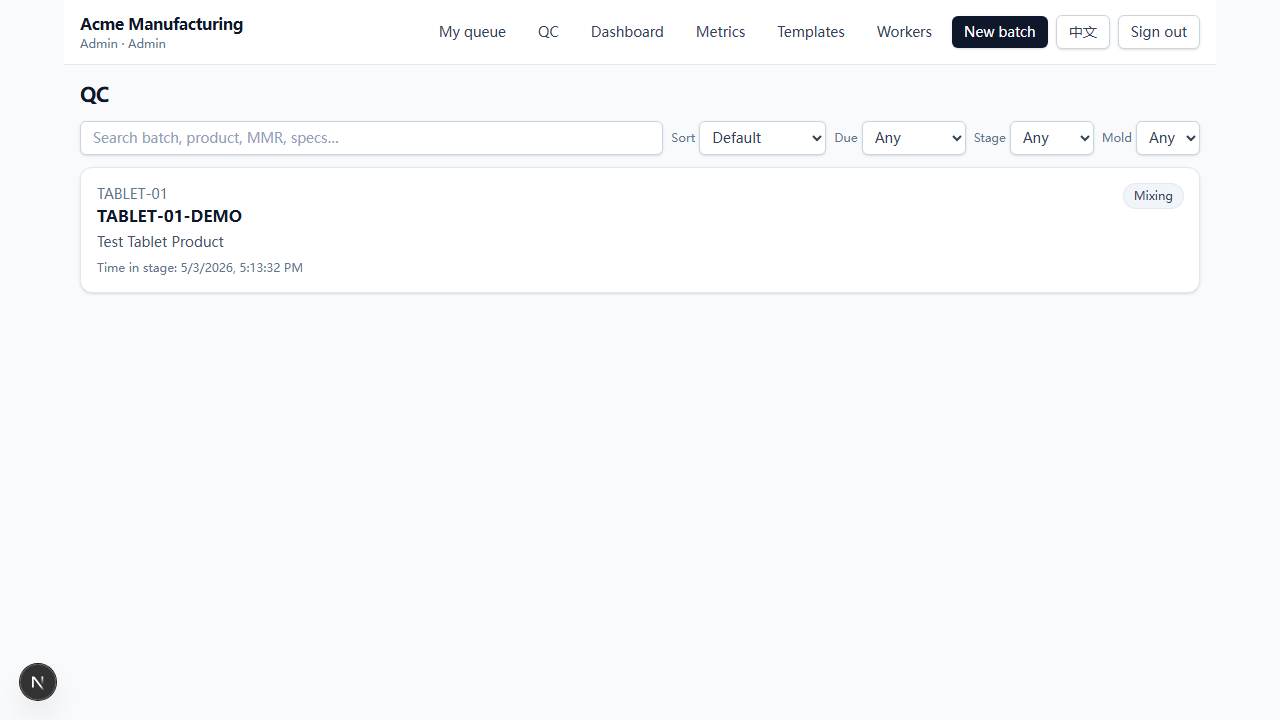
Decision page #
Tap Review on a card to open the decision page at /qc/[bspId].
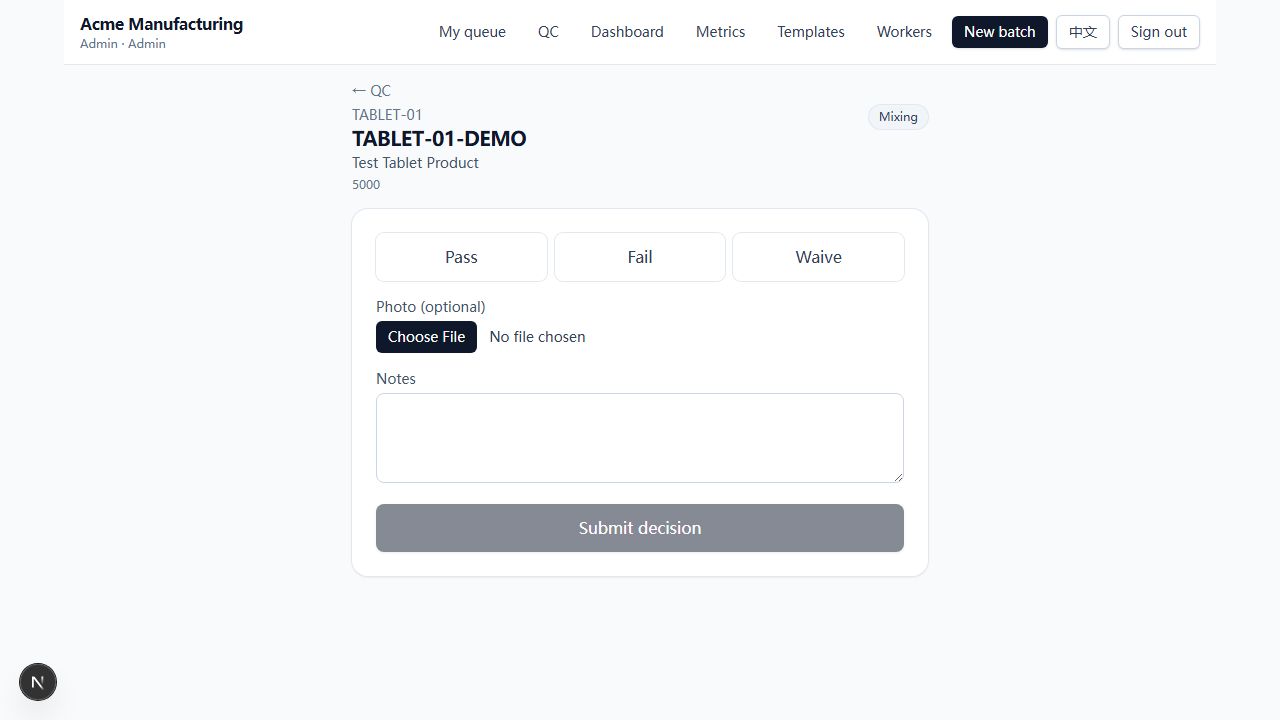
Three buttons. Optional photo and notes. Submit when ready.
Photo upload #
Optional but recommended. JPEG / PNG / WEBP / HEIC accepted. The photo is saved to Supabase Storage at <org_id>/<batch_id>/<stage_code>/<uuid>.<ext> and the path is recorded on the qc_checks row. The photo is kept regardless of decision — including failures.
Pass / Waive #
- Pass — sets
qc_status=pass. The route advancement trigger clears the gate; the next stage opens for the worker. - Waive — sets
qc_status=waived. Treated identically to Pass for sequential gating. Use when a lab certificate or external check covers it.
Fail & rework loop #
Fail resets the bsp: state_code=incomplete (Blocked), completed_at and qc_status cleared, notes set to "rework after QC fail". The original qc_checks row stays; failures are immutable in audit.
The flow:
- Worker marks Done; QC inspector hits Fail.
- Stage shows up in the manager's issue inbox with the rework note.
- Manager hits Resolve → Pending. Worker re-runs.
- Mark Done again → back to QC.
- New
qc_checksrow records the retest decision.
Audit immutability #
Every QC decision (Pass, Fail, Waive) creates a row in qc_checks that is never deleted. The full decision history per stage is queryable forever.
See also: Manager issue inbox · Audit event kinds
Manager #
Issue inbox (My queue, manager view) #
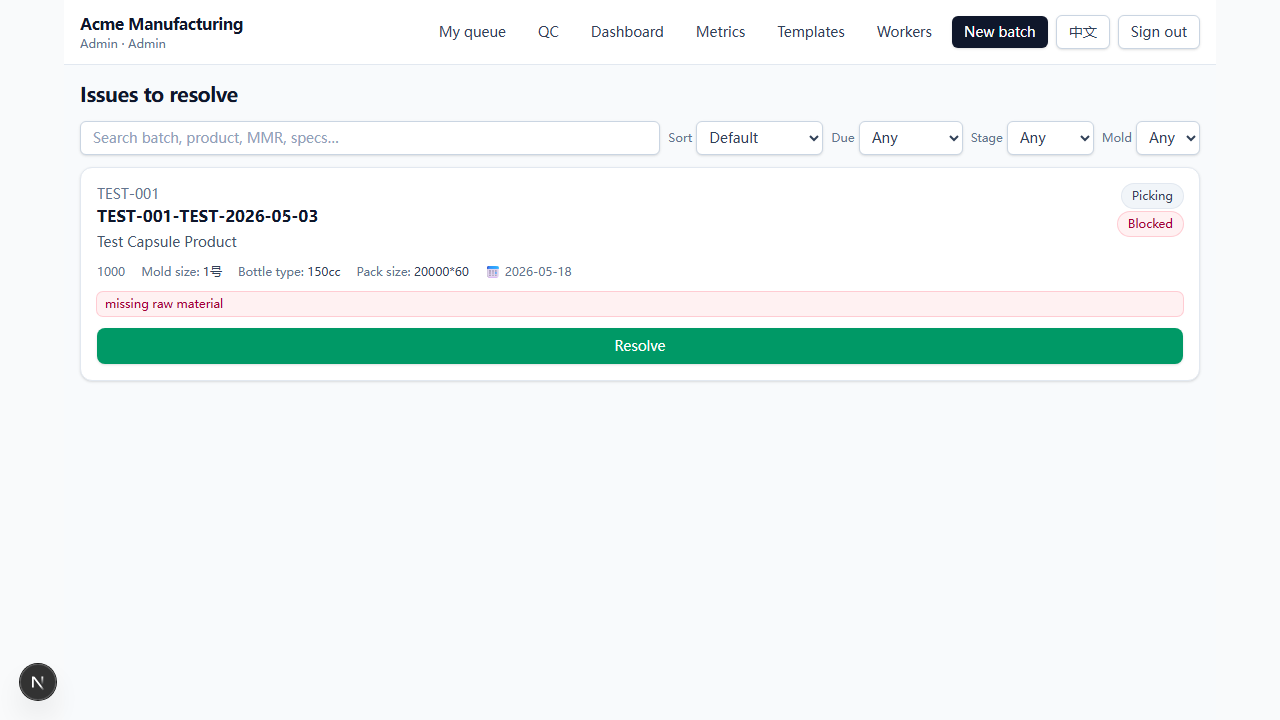
When you (manager or admin) visit /queue, you don't see the worker's view — you see the issue inbox: stages parked at Blocked, across the whole org. Each card surfaces the issue note (worker's reason or "rework after QC fail") and a single big Resolve button.
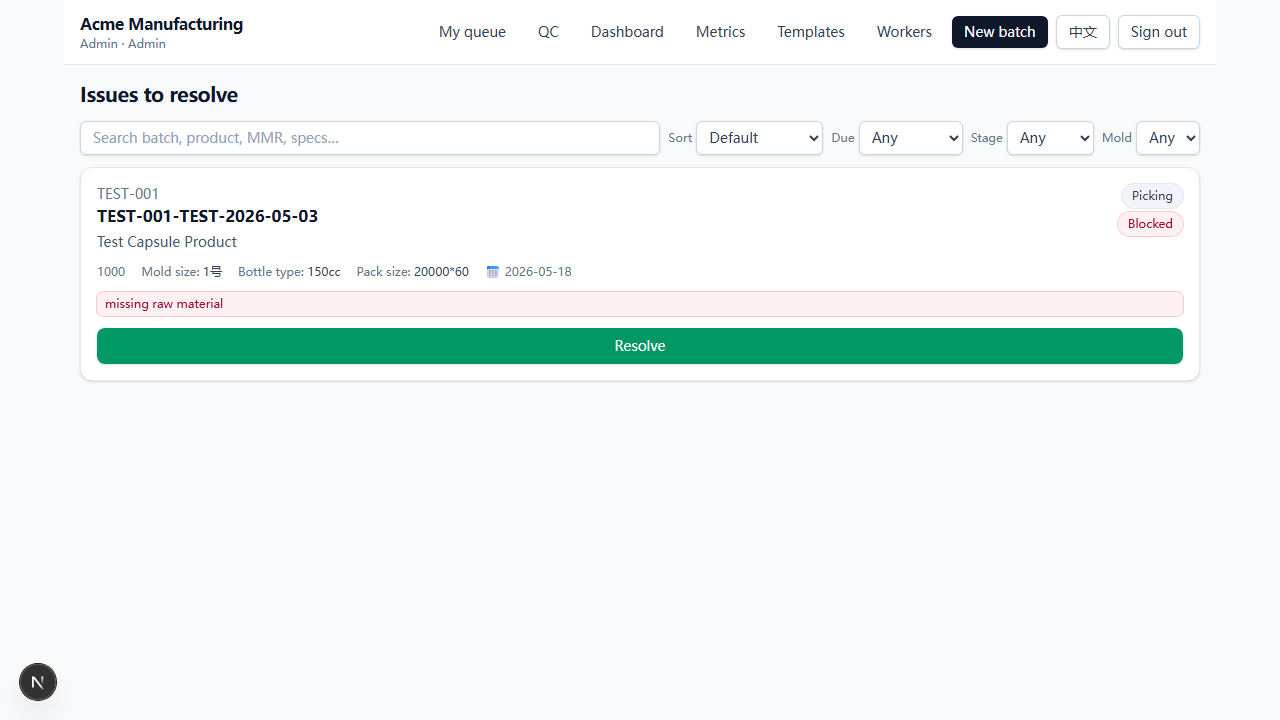
Admins also see QC pending cards interleaved with the Blocked ones — same /queue, with a Review button leading to the QC decision form. Managers don't see QC cards here; chase a stuck QC via the dashboard or batch detail instead.
Resolve flow #
Resolve sends incomplete → pending. The trigger clears any stale timestamps and qc_status. The worker sees Start again on their next refresh.
When the upstream is the real problem
Dashboard kanban #
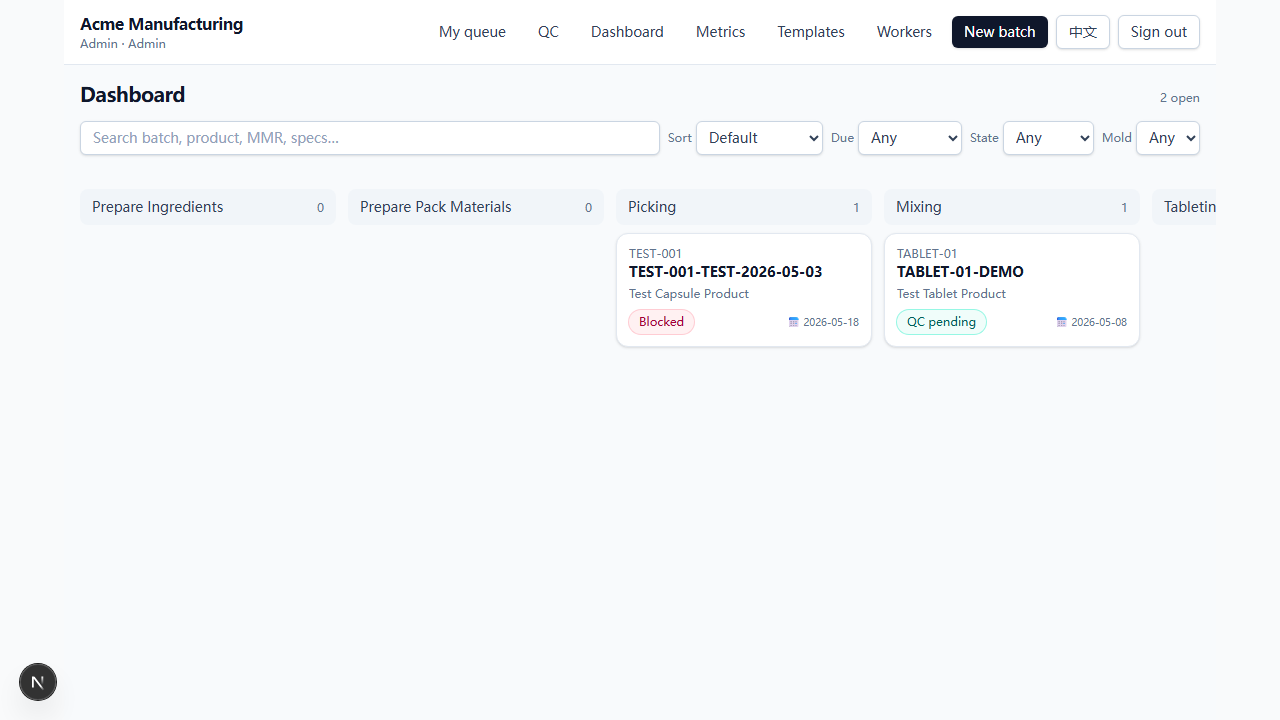
/manager/dashboard shows up to 200 most-recent open batches as a kanban grouped by current stage.
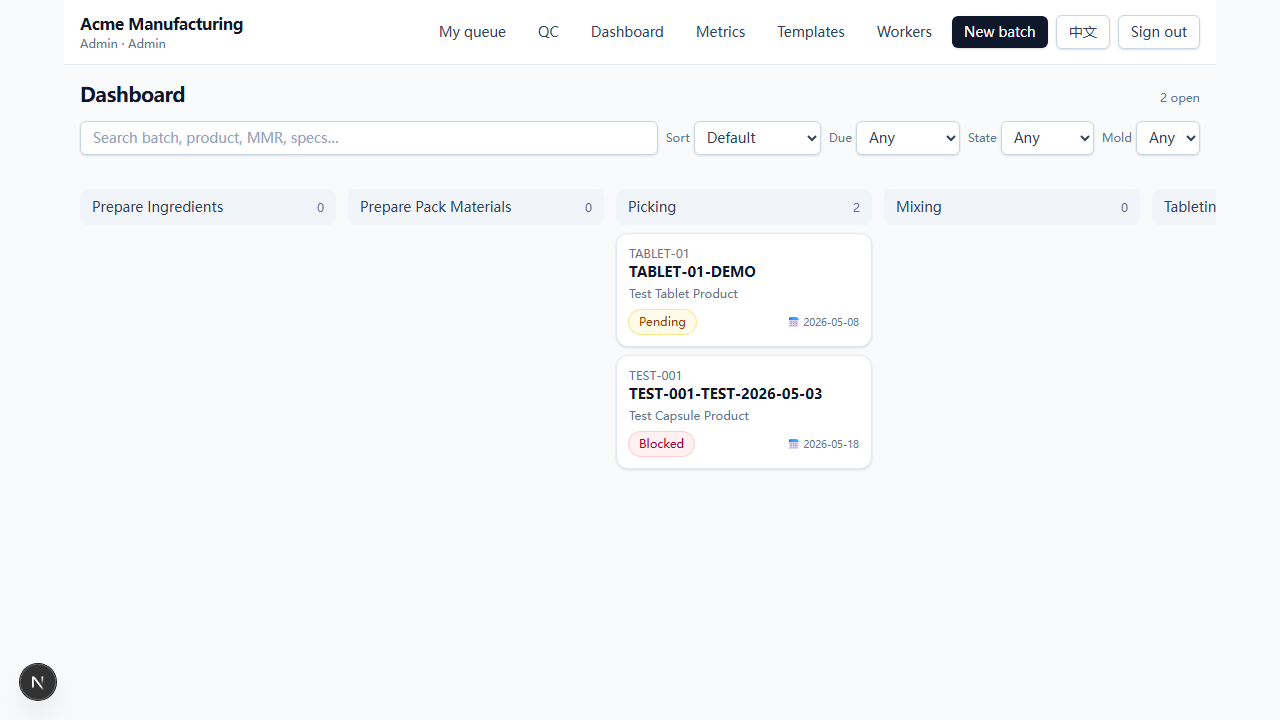
Click any card to open its batch detail page.
QC badges #
Cards on the dashboard show meaningful status, not just the raw state:
- QC pending (teal) — stage is done, waiting for QC. Belongs to QC, not the manager.
- QC failed — needs review (rose) — most recent QC was Fail and the stage is back at Blocked. Belongs to the manager.
Top scrollbar #
With many stages, the kanban scrolls horizontally. The scrollbar lives above the stage headers (not at the bottom) so it stays in your eye-line on a desktop screen — drag it directly, or trackpad-scroll the kanban and it follows.
See also: Batch detail · Filter bar
Batch detail #
Header & close batch #
Top of /manager/batches/[id] shows the batch code, product, MMR, and either a Close batch button (with a reason if disabled) or the closed-on timestamp.
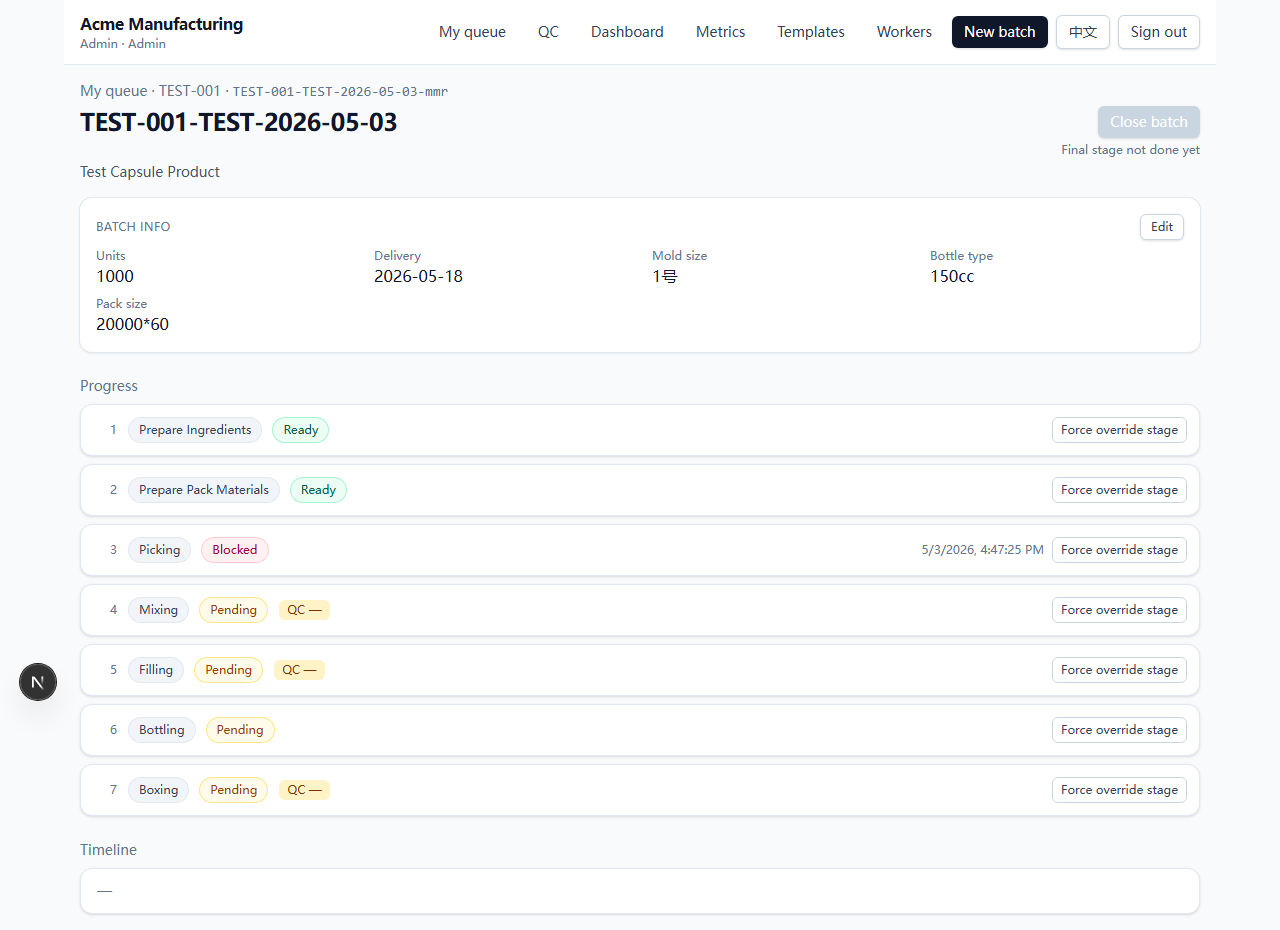
Auto-close fires when the final stage is Done with QC clear. Manual close is available when the same conditions are met.
Edit batch info #
The batch info card (units, delivery date, spec values) has an Edit button.
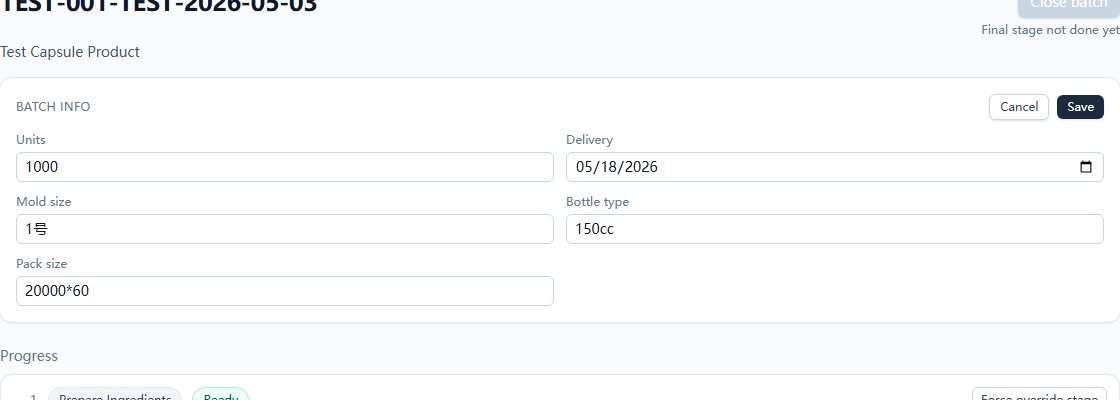
Editable: units, delivery date, and the spec field values. Keys and labels are locked at batch creation — to add a new spec field, edit the underlying template and create a new batch.
Progress list #
Every stage in the route, with state, completion timestamp, QC status, and a Force adjust stage link.
Force adjust (override) #
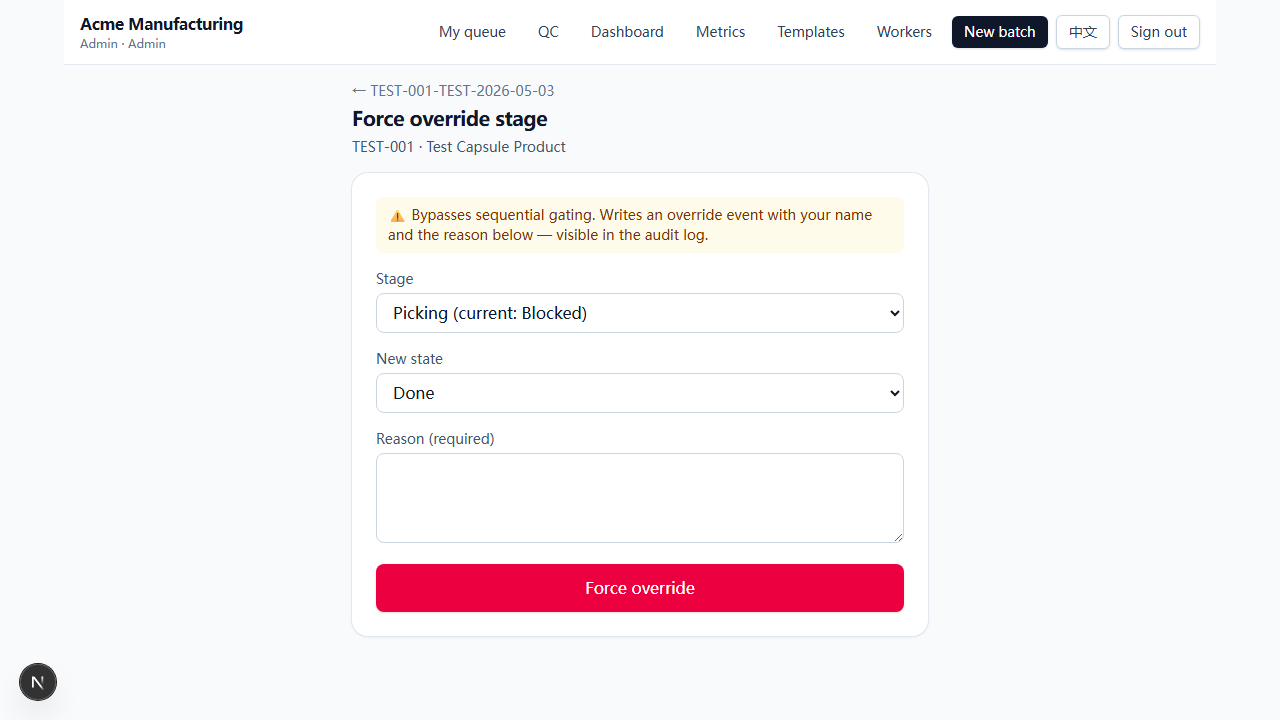
Click the Force adjust stage link to open the override form. Bypasses sequential gating; reason ≥3 chars required.
Common uses:
- Revert a mistaken Done — pick
Pending. The trigger clears stalecompleted_at,started_at, andqc_statusso the row is a clean slate. - Skip a stage already done in the physical world but not tracked (e.g. when migrating in-flight batches).
- Reopen a closed batch — reverting any stage to non-terminal automatically reopens the batch.
Two events are written to the timeline: a state_change with the admin's name and reason, plus a force_override event for traceability. Both rows record the actual actor.
Audit timeline #
Newest-first, last 100 events. Each row shows the actor, stage, transition, and the optional reason note. Event tones:
- state_change — Start / Done / Issue / Resolve.
- qc_pass — QC accepted.
- qc_fail — QC failed.
- override — Force adjust or auto-reopen.
- batch_closed — Auto-close or manual close.
Auto-reopen on revert #
If reverting a stage breaks the close conditions of an already-closed batch, the batch automatically reopens (closed_at cleared, with an override event labelled "auto-reopen"). Works regardless of which stage is being reverted, not just the final one.
See also: Issue inbox · Audit event kinds
Admin #
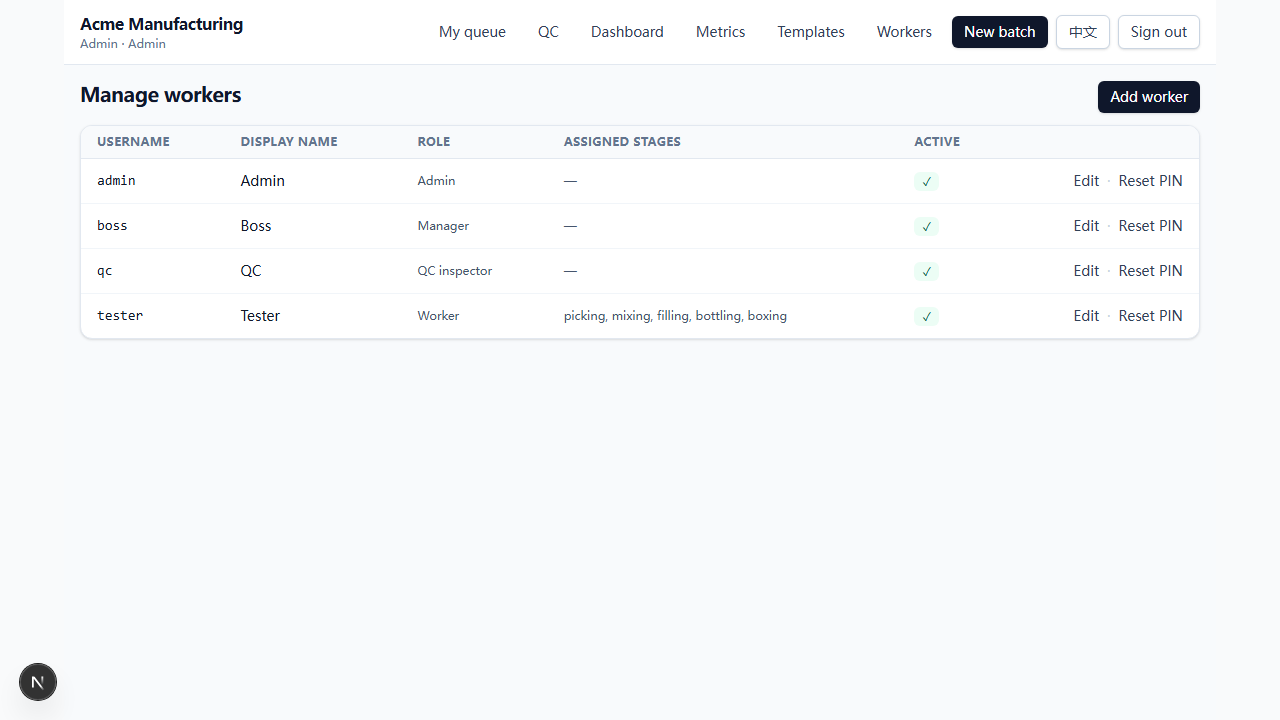
Workers list #
/admin/workers lists every worker in the org with their role, assigned stages (only relevant for the Worker role), and active flag.
Worker form #
Create or edit a worker: username (lower-case, dots / dashes / underscores allowed), display name, role, and PIN (auto-generated if left blank on create).
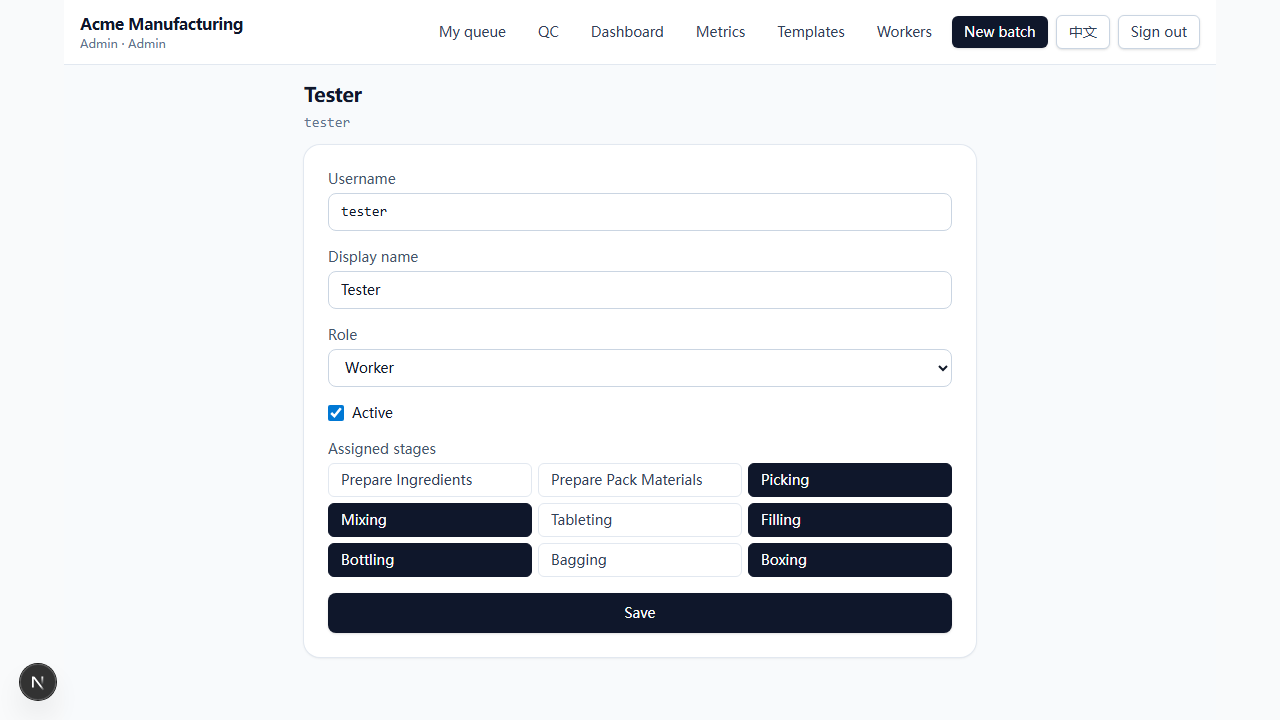
Roles & assignments #
The assigned stages grid only appears when the role is Worker. For QC inspector / Manager / Admin the grid is hidden and a hint takes its place.
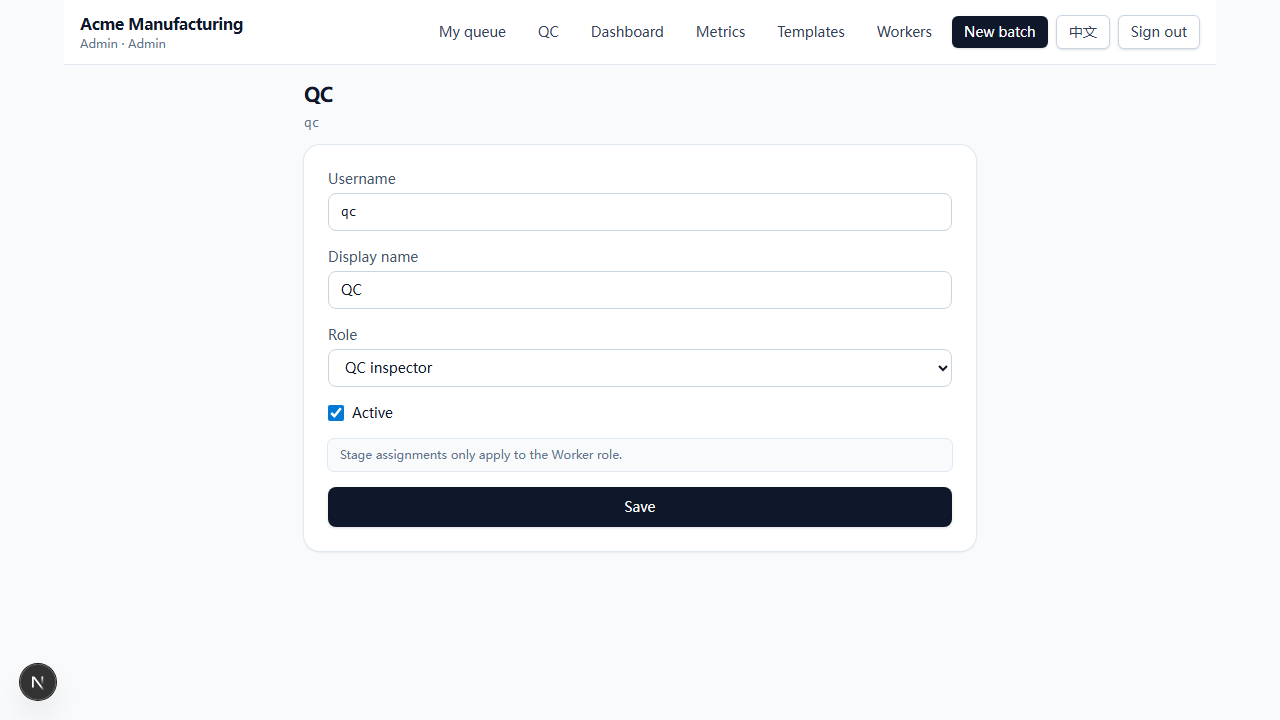
If the role is changed away from Worker on save, any saved assignments are dropped server-side.
Reset PIN #
Each row has a Reset PIN action. A new 4-digit PIN is generated and shown once on screen — write it down before navigating away. The old PIN is invalidated immediately.
Templates (route presets) #
/manager/presets — the library of route presets used when creating batches. Each preset declares stage codes (in order), which stages need QC, and the spec keys + labels for the batch info card.
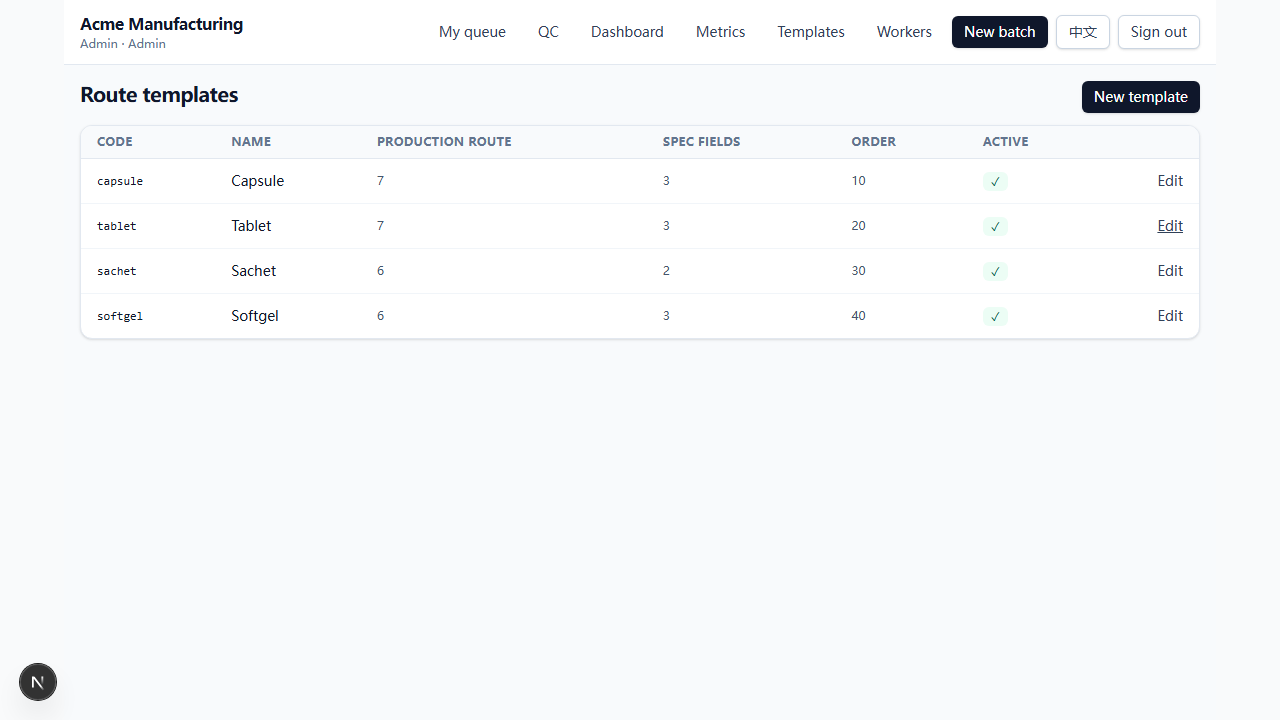
Built-in presets: Capsule, Tablet, Sachet, Softgel. You can edit any of them or add new presets — for example a separate route for a tincture or a powder.
In-use route protection
New batch #
Start a batch from a template.
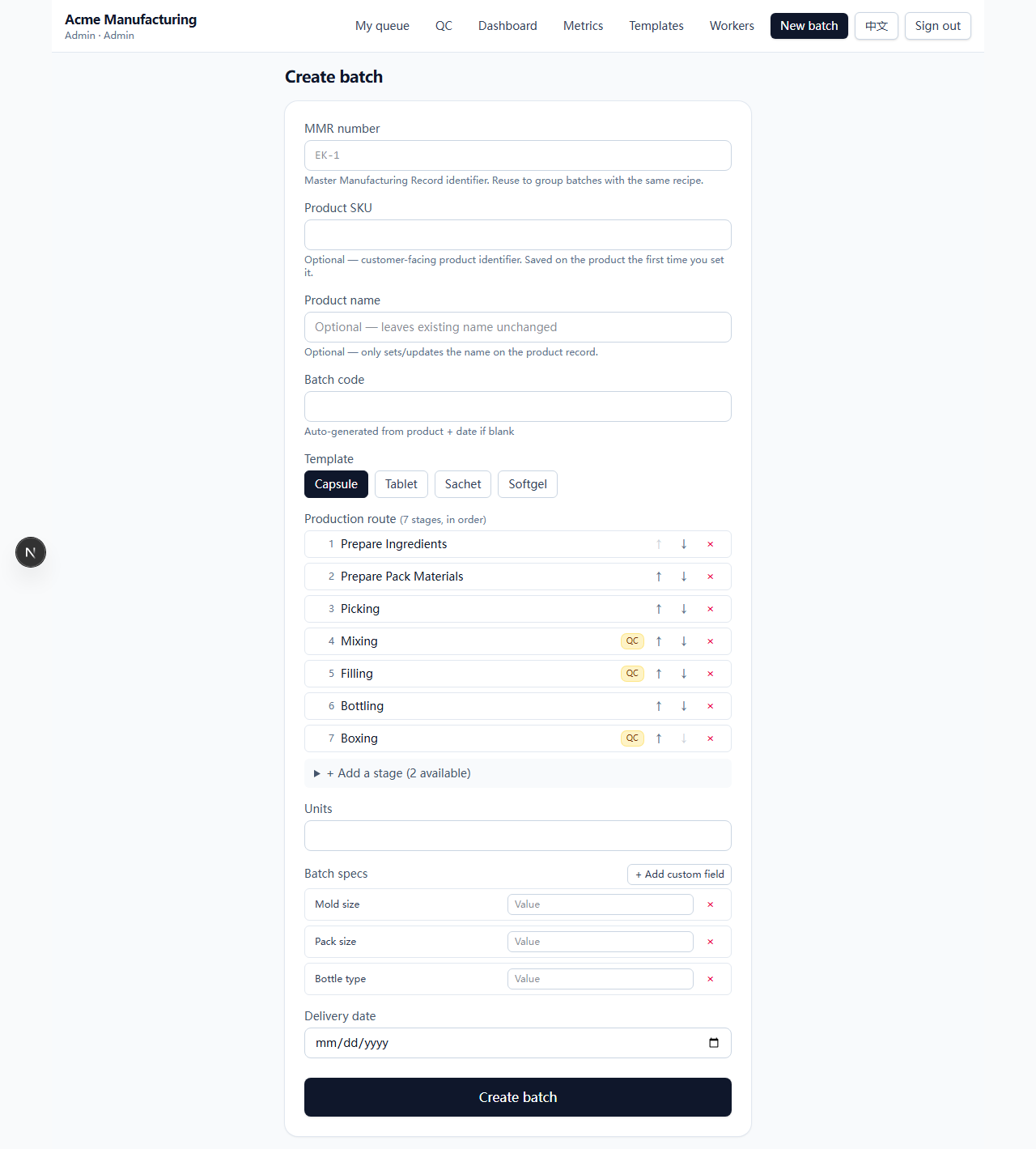
- Pick a product code (or type a new one — it'll auto-create the product).
- Pick a template — this seeds the route + the spec fields you can fill in.
- Fill in units + delivery date and any spec values. Custom fields can be added.
- Submit. Behind the scenes the form upserts the product, creates a fresh MMR for the batch, and seeds the
batch_stage_progressrows — every stage starts Pending, including warehouse prereqs (Ingredients / Pack Materials), which the warehouse has to Start and Mark Done per batch.
Members #
/admin/members manages email accounts that share access to this org. Invite new members by email; they get a sign-up link via Supabase Auth and choose their own password.
Members are bound to the org once they accept. They have an org-level role (owner or admin), separate from worker roles.
See also: Templates · New batch
Filters, sort, search #
The same filter bar lives at the top of /queue and /manager/dashboard.
Filter bar #

Full-text search #
?q=… — case-insensitive, debounced 200ms. Indexes:
- Batch code (e.g.
TEST-001-2026-05-03) - Product code and product name
- MMR code
- Every spec value (mold size, bottle type, pack size, sachet weight, …)
- Stage label in the current locale
Sort + direction #
| Sort | Default direction | Notes |
|---|---|---|
| Default | — | Page-specific (queue: state-priority + started_at; dashboard: created_at desc; qc: completed_at asc) |
| Delivery date | asc | Earliest deadline first; null delivery_date sinks to bottom |
| Order size | desc | Biggest order first |
| MMR | asc | Alphabetical |
The ↑ / ↓ arrow next to the sort dropdown flips direction. Hidden when sort is "Default".
Due-in-N-days #
?due=N — show only batches with delivery_date ≤ today + N days. Options: 3 / 7 / 15 / 30 days. Batches without a delivery date are excluded under any due filter.
Stage / State / Mold #
- Stage — populated from stages currently visible. Pick "Mixing" to focus on mixing-stage cards only.
- State — populated from states currently visible. On the worker queue this surfaces (Pending, In Progress, Blocked, etc.); the manager inbox is always Blocked-only so the State dropdown is hidden there.
- Mold — distinct mold values across visible batches (e.g.
0号,1号). Batches without amold_sizespec are excluded.
URL state #
Every filter is in the URL search string. That means: refresh-safe, bookmarkable, and immune to the realtime channel auto-refreshing the page out from under you. A Clear button appears once any filter is active and wipes everything back to the bare path.
See also: My queue · Dashboard kanban
Reference #
State codes & default labels #
| Code | EN label | ZH label | Terminal? | Notes |
|---|---|---|---|---|
pending | Pending | 待处理 | no | Not started yet |
in_progress | In Progress | 进行中 | no | Worker hit Start |
done | Done | 已完成 | yes | Worker hit Mark Done |
ready | Ready | 就绪 | yes | Terminal for prereq stages |
incomplete | Blocked | 受阻 | no | Manager intervention required |
material_waiting | Material Waiting | 待料 | no | Mid-prereq pause |
material_missing | Material Missing | 缺料 | no | Mid-prereq pause |
coding | Coding | 打码 | no | Pre-Done state for Boxing only |
Stage codes #
ingredients (Prepare Ingredients), pack_materials (Prepare Pack Materials), picking, mixing, tableting, filling, bottling, bagging, boxing.
Templates declare which stages to use and in what order. Not every template uses every stage — Capsule skips Tableting and Bagging; Sachet skips Tableting, Filling, and Bottling.
Audit event kinds #
| Kind | When written |
|---|---|
state_change | Any worker / QC / override transition |
qc_pass / qc_fail / qc_waived | QC decision submitted |
batch_created | Batch creation |
batch_closed | Auto-close (final stage clean) or manual close_batch |
override | Force-adjust event with the actor and reason; also auto-reopen |
Troubleshooting #
| Symptom | First check |
|---|---|
| Worker doesn't see a card they expect | Their worker_stage_assignments for the stage; whether the stage is the batch's current_stage. |
| Card shows Blocked, worker can't act | Manager needs to Resolve at /queue (manager view) or override an upstream stage. |
QC item doesn't appear in /queue | Stage must be done + qc_required + qc_status IS NULL + batch open. |
| Batch won't close | Final stage state_code not terminal, or QC required and not pass/waive. |
| "Sequential gating" error on Mark Done | An earlier stage isn't terminal, or its QC hasn't passed. |
| "Illegal transition" error | Worker tried a transition the floor isn't allowed to make (e.g. Blocked → In Progress). Manager must Resolve. |